
ESUMDM
Mass Deployment Guide for Jamf Pro
Table of Contents
Configure via Configuration Profile
Configuration Profile Example
Preference Key Reference
Introduction
ESUMDM leverages Configuration Profiles to define the functionality and user experience of the tool. Administrators should begin by building Computer Group scopes, then define customizations with Configuration Profiles, and lastly install the ESUMDM software. Use the following guide to deploy according to best practices.
Creating Scopes
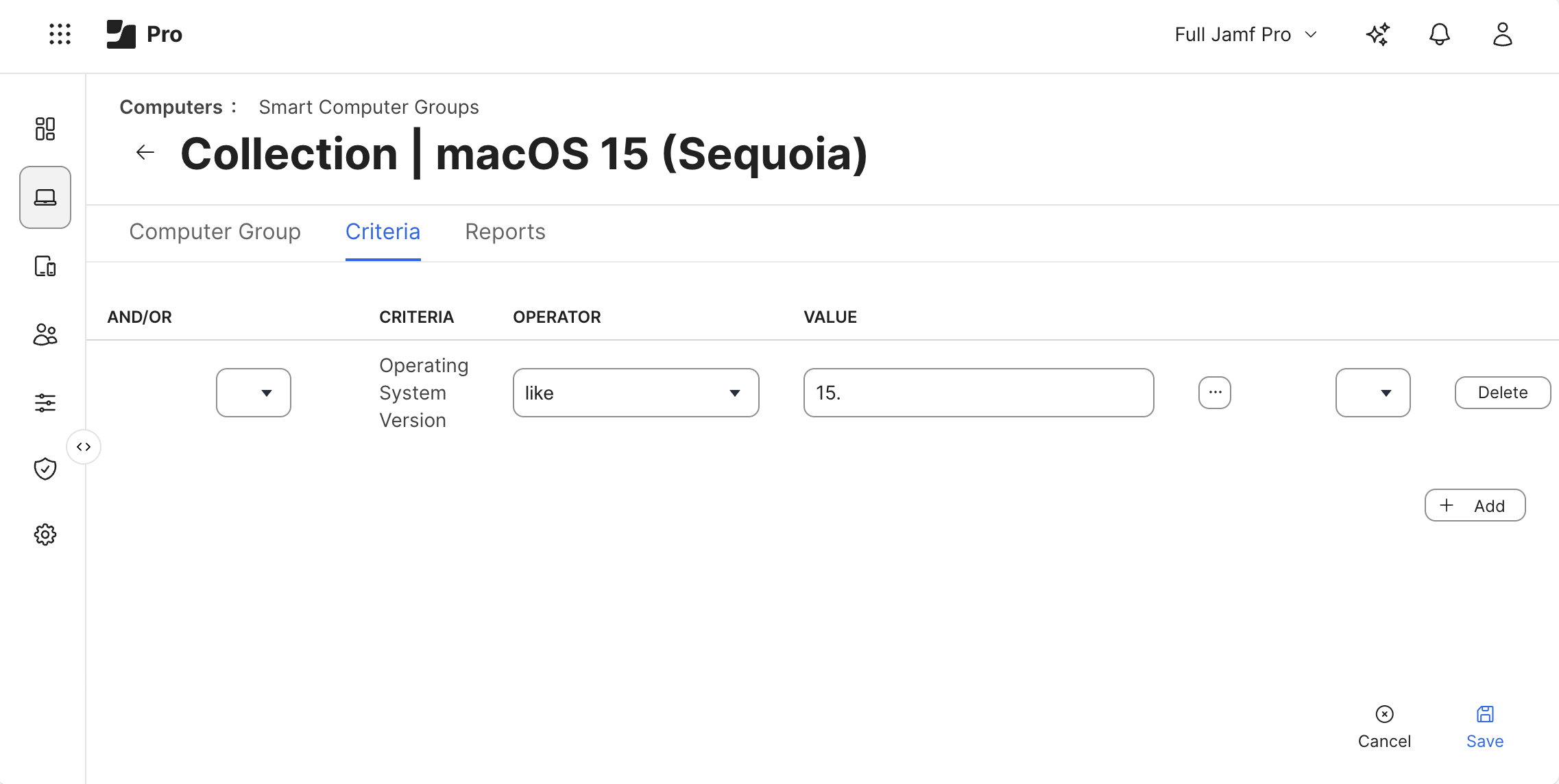
Scoping ESUMDM objects in Jamf Pro is best done via Computer Smart Groups. Minor versions of macOS updates (e.g. 15.7.2) are defined on a per-release basis for each major version of macOS (e.g. 15.x), so EDUMDM preferences need to be enforced accordingly.
Smart Computer Groups
Administrators should begin by creating one Smart Group for each major version of macOS.
Configuration Profiles
The ESUMDM Managed Preference Domain is:
io.enterprisesoftwareupdate.esumdm
Administrators may choose to:
A) Deploy a Single Configuration Profile to each major version of macOS, or
B) Deploy Multiple Configuration Profiles to take a layered approach, deploying common settings with a single Configuration Profile to all Macs, then define and deploy target minor versions scoped to each major version of macOS (target_minos_version).
Configuration Profile Example
This example Configuration Profile includes all the Preference Keys available to customize ESUMDM. Refer to the Preference Key Reference for specific details about each setting.
<?xml version="1.0" encoding="UTF-8"?>
<!DOCTYPE plist PUBLIC "-//Apple//DTD PLIST 1.0//EN" "http://www.apple.com/DTDs/PropertyList-1.0.dtd">
<plist version="1.0">
<dict>
	<key>target_minos_version</key>
	<string>15.7.2</string>
	<key>deadline</key>
	<date>2025-12-31T12:00:00Z</date>
	<key>helpdesk_message</key>
	<string>Contact the Helpdesk at (800) 555-1212 for assistance.</string>
	<key>networkquality_disabled</key>
	<true/>
	<key>org_logo_path</key>
	<string>/usr/local/org/logo.png</string>
	<key>org_name</key>
	<string>My Org Name</string>
	<key>preflight_enabled</key>
	<true/>
	<key>preflight_jamf_array</key>
	<array>
		<string>Updating Software Title 1,pre_event1</string>
		<string>Updating Software Title 2,pre_event2</string>
	</array>
	<key>postflight_enabled</key>
	<true/>
	<key>postflight_forced</key>
	<true/>
	<key>postflight_jamf_array</key>
	<array>
		<string>Installing Post-Update 1,post_event1</string>
		<string>Installing Post-Update 2,post_event2</string>
	</array>
</dict>
</plist>
Preference Key Reference
Minimum Minor OS Version
Key: target_minos_version
String
<key>target_minos_version</key>
<string>15.7.2</string>
Deadline to Update macOS
Key: deadline
Date
<key>deadline</key>
<date>2025-12-31T12:00:00Z</date>
Helpdesk Message
Key: helpdesk_message
String
<key>helpdesk_message</key>
<string>Contact the Helpdesk at (800) 555-1212 for assistance.</string>
Disable Network Quality Check
Key: networkquality_disabled
Boolean
<key>networkquality_disabled</key>
<true/>
Organization Logo
Key: org_logo_path
String
<key>org_logo_path</key>
<string>/usr/local/org/logo.png</string>
Note: Administrators who would like to use their organization’s logo need to place the logo on the Mac filesystem prior to deploying ESUMDM. Recommended permissions are world-readable (e.g. posix 664)
Organization Name
Key: org_name
String
<key>org_name</key>
<string>My Org Name</string>
Preflight and Postflight Sequences
ESUMDM allows Jamf Pro administrators the ability to run a series of Jamf Pro policies before and/or after the macOS Software Update completes. These preflight and postflight policy sequences leverage “custom triggers“ (aka “custom events”) and will only run if a policy is offered by Jamf Pro for any given trigger. Because policies will only display to end users if a policy is offered by Jamf Pro, admins may create comprehensive sequences of custom triggers and use criteria-based scoping within these policies to ensure Macs only run policies they are eligible for. See the Jamf Pro Documentation for further details on custom policy triggers.
Preflight and Postflight sequences are enabled independently from the list (array) of custom triggers. Each policy list follows a syntax that separates the UI Description from the trigger itself.
e.g. User-Facing Text,trigger_name
Enable Preflight Sequence
Key: preflight_disabled
Type: Boolean
Example:
<key>preflight_disabled</key>
<true/>
Preflight Policy Array
Key: preflight_jamf_array
Type: Array
Example:
<key>preflight_jamf_array</key>
<array>
	<string>Updating Software Title 1,pre_event1</string>
	<string>Updating Software Title 2,pre_event2</string>
</array>
Enable Postflight Sequence
Key: postflight_disabled
Type: Boolean
Example:
<key>preflight_disabled</key>
<true/>
Postflight Policy Array
Key: postflight_jamf_array
Type: Array
Example:
<key>postflight_jamf_array</key>
<array>
	<string>Installing Post-Update 1,post_event1</string>
	<string>Installing Post-Update 2,post_event2</string>
</array>
Force Postflight Sequence
Key: postflight_forced
Type: Boolean
Example:
<key>postflight_forced</key>
<true/>
Note: The Postflight sequence may be forced at startup to ensure that Macs run the sequence of postflight policies even when updating macOS via native Apple methods.
Policies
ESUMDM activates by reading the Managed Preferences deployed via Configuration Profile and prompts users accordingly. To deploy via Jamf Pro, Administrators should first scope the Configuration Profile, then deploy the ESUMDM installer .pkg via a Jamf Pro Policy.
Below is an example of a Mass Deployment Policy.
via Mass Deployment Policy
Create a New Policy (Computers > Policies) with the name Install ESUMDM Once. In the below example, we’ll scope the policy to All Computers, however admins may choose to leverage a dedicated Smart Group containing Macs without the ESUMDM installer.
Options
General
Display Name: Install ESUMDM Once
Trigger: Recurring Check-in
Frequency: Once Per Computer
Packages
Add the latest version of ESUMDM
(refer to Jamf Pro documentation on uploading packages)
Scope
All Computers